Westinghouse Thermal Printer WHTP203e Linux Drivers
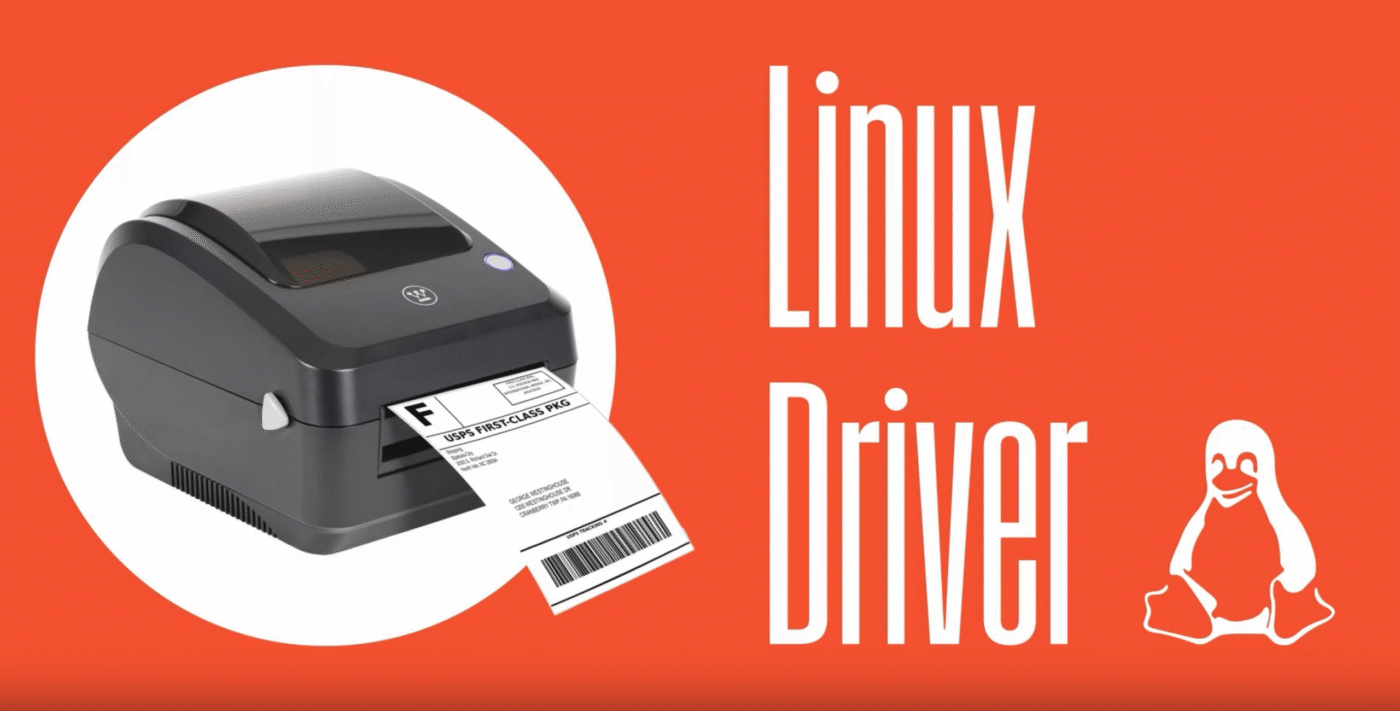
UPDATE: I've switched to using an atomic distribution which made this manual install difficult/impossible. I've created an rpm you can simply download and install either via dnf or rpm-ostree.
I needed a thermal printer for my business. My business runs on Fedora 42 KDE. https://fedoraproject.org/kde/ So when I heard Westinghouse actually provides Linux support for their printers. I got excited!
I got a little less excited when I discovered they only provide a .deb for Debian based Linux. https://westinghouse.com/pages/thermal-printer-whtp203e
That's alright, I know some things about Linux I'm sure I can make this work. If you know Linux you know packages are very similar to how mac applications work. They're basically just zip files and then some ancillary files the package manager can read in order to copy all the right stuff to the right places.
You might think why not just use Alien? I did! Alien fails to convert the deb to rpm due to missing dependencies. I spent a bit of time trying to sort those but was unsuccessful.
So next up is manually installing the printer drivers. Through a little sleuthing and an internet search or two I managed to get this thing working with Fedora. This should work with most other versions of Linux since CUPS is pretty standard.
Note the files I've provided are for x64 platform only. The Westinghouse deb file does includes the files for many other platforms.
To install this on Fedora 42 or similar do the following:
Download the files in this repo.
git clone https://github.com/tekchip/Westinghouse_WHTP203e_Linux_Drivers.git
Copy all the rastertosnail...-westinghouse files to /usr/lib/cups/filter/ Most likely this folder will require sudo or root access.
sudo cp *-westinghouse /usr/lib/cups/filter/
You may run in to permissions issues. You should do the following to avoid these.
sudo chown root:root /usr/lib/cups/filter/*-westinghouse
sudo chmod 755 /usr/lib/cups/filter/*-westinghouse
Add the printer which should be detected and when prompted manually point the printer dialogue to the PPD file.
Happy printing!